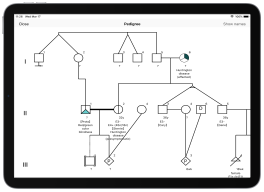
A novel automated questionnaire-based pedigree chart creation software
•f-tree is a software application that automatically creates medical pedigree chart of a family by simply using the family's information, which is provided in the questionnaires. •Specialized knowledge of clinical genetics is not required to use the f-tree software. •f-tree is fully compliant with the international recommendations provided for standardized human pedigree nomenclature. •At present,f-tree proves to be the foremost tool, which is capable of creating the pedigree charts for genetic counseling. •The application of f-tree software is not only limited to the heredity clinics, but can also used in genome cohort studies that can easily handle large volume of data, and secondary education. •f-tree desktop version is available for both Windows and mac OS. •f-tree iOS version is available for iPad and iPhone.
*From 2021, support for Adobe AIR has been transferred from Adobe to HARMAN, but you can still download it for free.

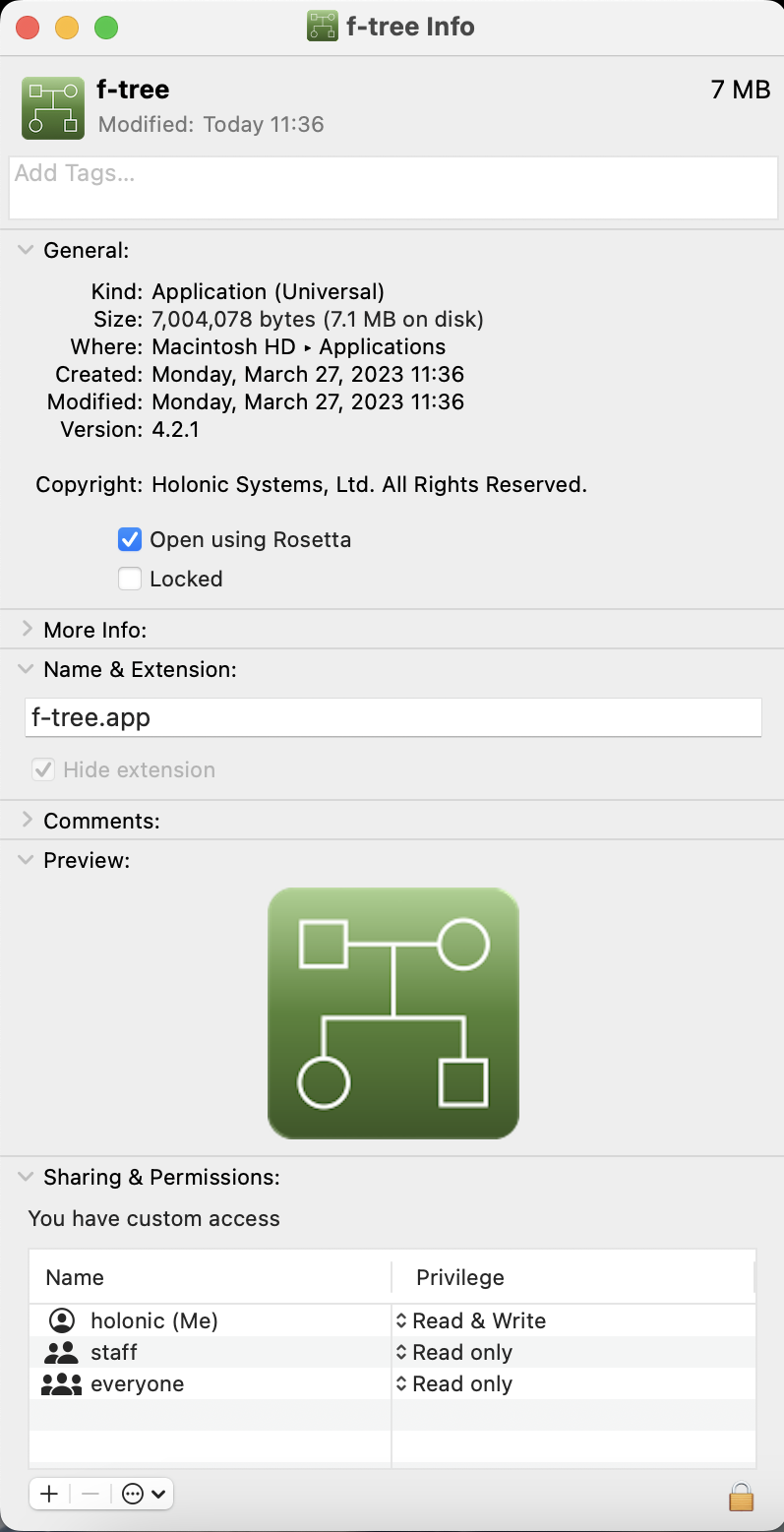

Note: If a version earlier than Ver. 4.2.1 is already installed, the following error message will appear. In that case, please uninstall the existing application via Windows Settings before installing the new version.

f-tree users are requested to accept the terms of use before using the softwre for conference presentations, manuscript preparation, or commercial purposes.
Produced by Dr. H. Ono and Dr. H. Bono of Database Center.
| Installing and Launching f-tree |
|---|

|
|
•Install the free software Adobe AIR and Adobe Acrobat Reader DC in advance. |
| Entering Information in the Multiple-Choice questionnaire |
|---|

|
•Adding Family Members, etc. •Birth Information •Client (Consultand) •Proband •Divorced •Custody •Widowhood •Consanguineous Marriage •Name •Gender •Multiple Individuals •Age •Vital Status •Birth Order •Multiple Birth ID •Adoption •Donor(D)/Surrogate •Affected Status •Multiple Conditions •Pregnancy, etc. •Gestational Age(weeks) •Disease,etc./Key •Remarks |
| Operations on the Pedigree Screen |
|---|

|
|
•Family Tree Display •Comment Function •Show Names •Edit |
| Saving Data and Images |
|---|
|
•Saving Data •Saving Images |
| Operations on the Home Screen |
|---|
|
|
|
•Changing Settings •Search •Create New file / Edit / Delete •Data Export |
| Male | Female | Gender not specified | Comments | |
|---|---|---|---|---|
1. Individual |

|

|

|
Assign gender by phenotype (see text for disorders of sex development,etc.). Do not write age in symbols. |
2. Affected individual |


|


|


|
Key/legend used to define shading or other fill (e.g.,hatches,dots,etc.). Use Only when individual is clinically affected. With >= 2 conditions, the individual's symbol can be partitioned accordingly, each segment shaded with a different fill and defined in legend. |
3. Multiple individuals, number known |

|

|

|
Number of siblings written inside symbol. (Affected individuals should not be grouped). |
4. Multiple individuals, number unknown or unstated |

|

|

|
"n" used in place of "?". |
5. Deceased individual |

|

|

|
Indicate cause of death if known. Do not use a cross (+) to indicate death to avoid confusion with evaluation positive (+). |
6. Consultand |

|

|
Individual(s) seeking genetic counseling/testing. | |
7. Proband |

|

|
An affected family member coming to medical attention independent of other family members. | |
8. Stillbirth (SB) |

|

|

|
Include gestational age and karyotype, if known. |
9. Pregnancy (P) |

|

|

|
Gestational age and karyotype below symbol. Light shading can be used for affected; define in key/legend. |
| Affected | Unaffected | ||
|---|---|---|---|
10. Spontaneous abortion (SAB) |

|

|
If gestational age/gender known, write below symbol. Key/legend used to define shading. |
11. Termination of pregnancy (TOP) |

|

|
Other abbreviations(e.g., TAB, VTOP) not used for sake of consistency. |
12. Ectopic pregnancy (ECT) |

|
Write ECT below symbol. | |
| Symbol | Scenario | |
|---|---|---|
| 1. Documented evaluation (*) | 
|
1. Use only if examined/evaluated by you or your research/clinical team or if the outside evaluation has been reviewed and verified. 2. Not likely to manifest disease regardless of inheritance pattern. 3. Clinically unaffected at this time but could later exhibit symptoms.
|
| 2. Carrier | 
|
|
| 3.Asymptomatic/presymptmatic carrier | 
|
|
| 4. Uninformative study (u) | 
|
|
| 5. Affected individual with positive evaluation (E+) | 
|
| 1. Definitions | Comments | |
|---|---|---|

|
If possible, male partner should be to left of female partner on relationship line. Siblings should be listed from left to right in birth order (oldest to youngest). | |
| 2. Relationship line (horizontal)
a. Relationship b. Consanguinity |

|
A break in relationship line indicates the relationship no longer exists. Multiple previous partners do not need to be shown if they do not affect genetic assessment. If degree of relationship not obvious from pedigree, it should be stated (e.g., third cousins) above relationship line. |
3. Line of descent (vertical or diagonal) a. Genetic i. Family history not available/known for individual ii. Multiple gestation iii. No children by choice or reason unknown iv. Infertility b. Adoption |

|
a. Genetic i. Biologic parents shown. ii. The horizontal line indicating monozygosity is placed between the individual's line and not between each symbol. An asterisk (*) can be used if zygosity proven. iii. Indicate reason, if known. iv. Indicate reason, if known. b.Brackets used for all adoptions. Adoptive and biological parents denoted by dashed and solid lines of descent, respectively. |
| Possible Reproductive Scenarios and Comments | |||
|---|---|---|---|
|
1. Sperm donor Couple in which woman is carrying pregnancy using donor sperm. No relationship line is shown between the woman carrying the pregnancy and the sperm donor. |

|
2. Ovum donor Couple in which woman is carrying pregnancy using a donor egg and partner's sperm. The line of descent from the birth mother is solid because there is a biologic relationship that may affect the fetus (e.g., teratogens). |

|
|
3. Surrogate only Couple whose gametes are used to impregnate a woman (surrogate) who carries the pregnancy. The line of descent from surrogate is solid because there is a biological relationship that may affect the fetus (e.g., teratogens). |

|
4. Surrogate ovum donor Couple in which male partner's sperm is used to inseminate a) an unrelated woman or b) a sister who is carriying the pregnancy for the couple. |

|
This software was developed through a joint research project between Iwate Medical University and Holonic Systems Co., Ltd., funded by the Japan Agency for Medical Research and Development (AMED) Medical Research and Development Promotion Project Subsidy (Tohoku Medical Megabank Project General Account) and the FY2016 Iwate Next-Generation Industry Seed Development Test Research Subsidy.